JWT Assertion Authentication Examples via Custom Code
This section describes examples of authentication with JWT assertion using Custom Code.
If your target API does not accept static credentials and instead demands an assertion framework to establish machine-to-machine (M2M) trust, the server-to-server (S2S) pattern replaces the traditional authorization grant with a locally signed token.
Use this path to configure Druid as a trusted server. Instead of transmitting static credentials, Druid executes code locally within the connector to generate a short-lived token assertion on the fly.
Configuration Steps
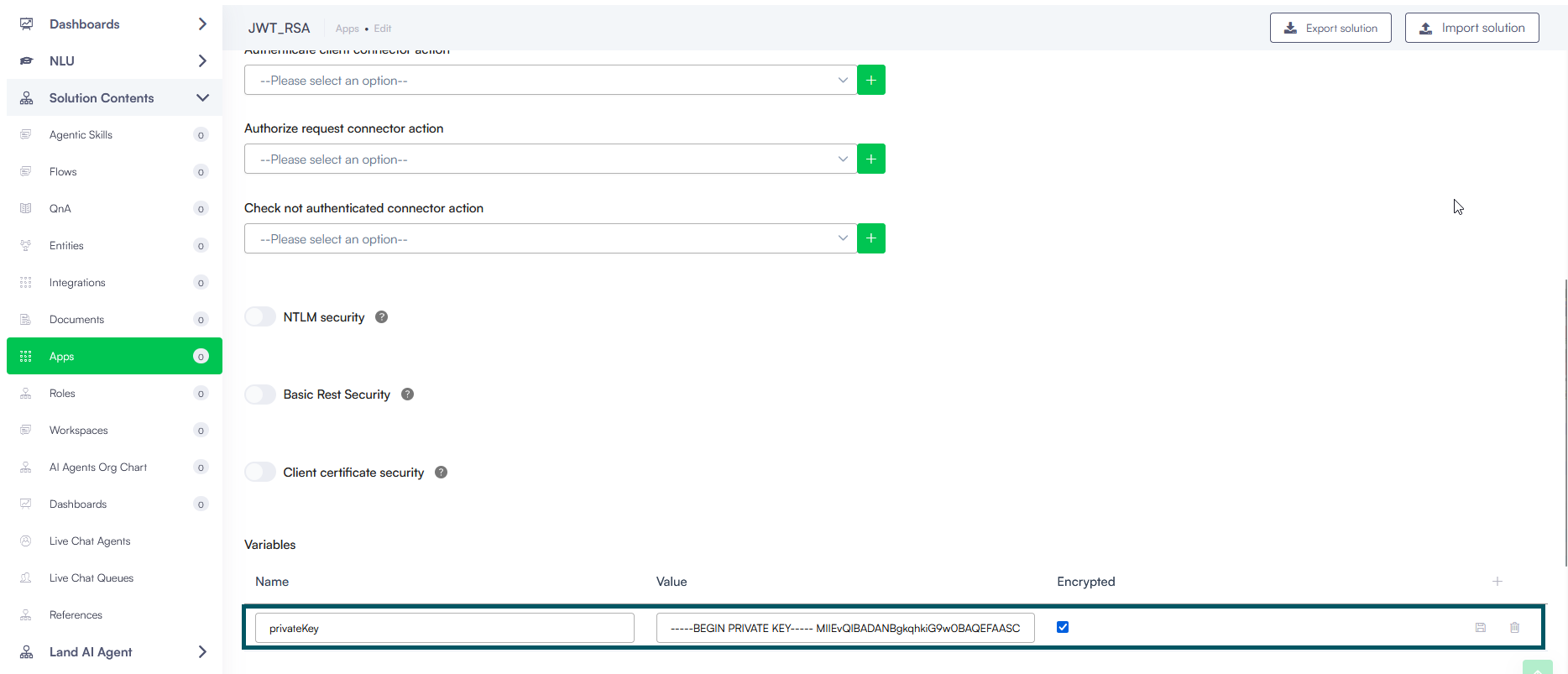
Prerequisite
- Before you begin, save the private key as context variable on the app.
To configure JWT Assertion authentication via Custom Code, set up the Authenticate client connector action using the following sequence:
Step 1. Add a Custom Code integration task first
Click the Create Task button and select Custom Code.
In the code editor area, retrieve your securely stored certificate private key from your application variables.
Call one of the built-in local cryptographic methods to sign your payload. Read the JWT Assertion Generation Reference below for available options and exact syntax.
Within your custom script, save the generated token string into a context variable (for example, @jwt).
Save the integration task.
Step 2. Add the Authenticate Client integration task
Click Create Task again and select Authenticate Client directly after your Custom Code integration task.
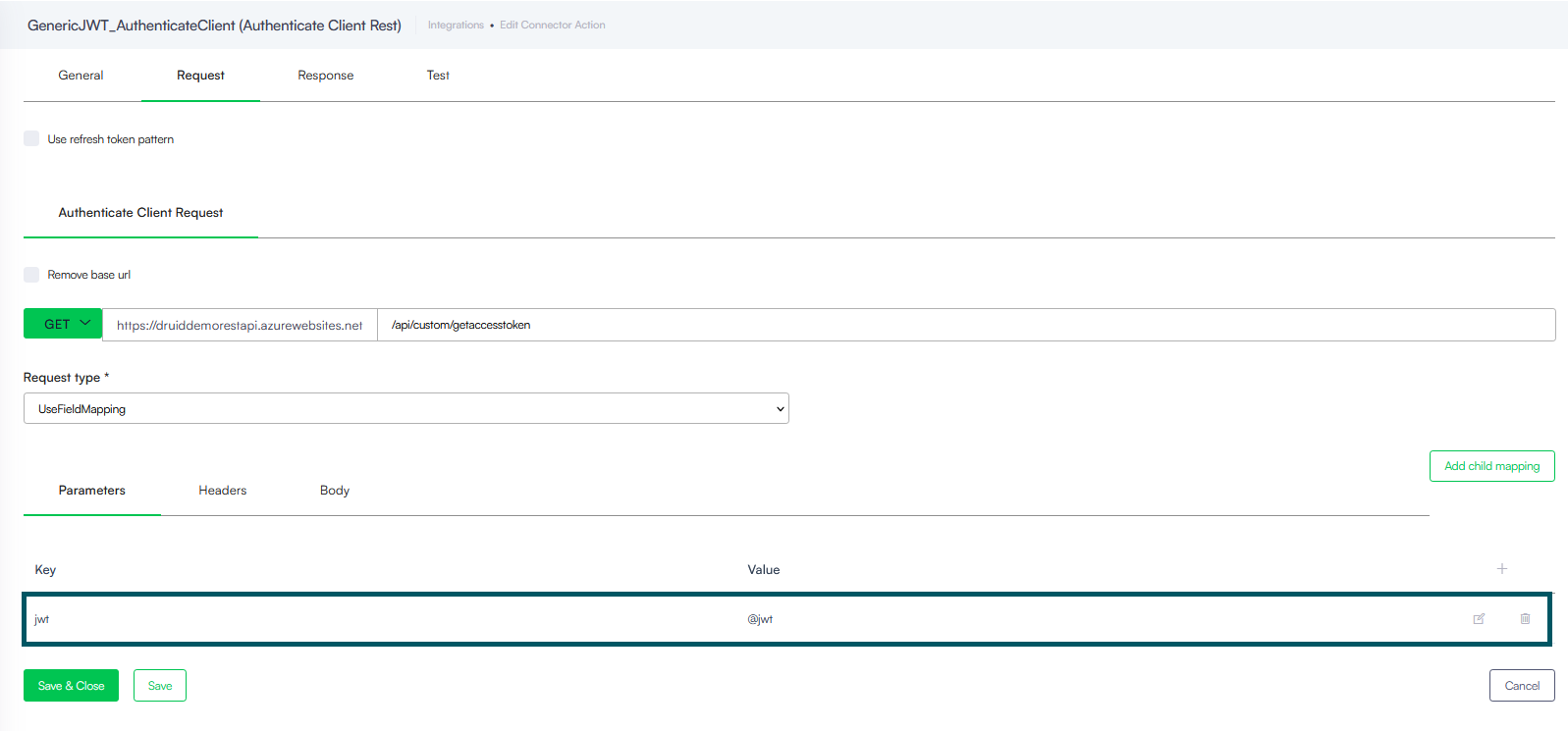
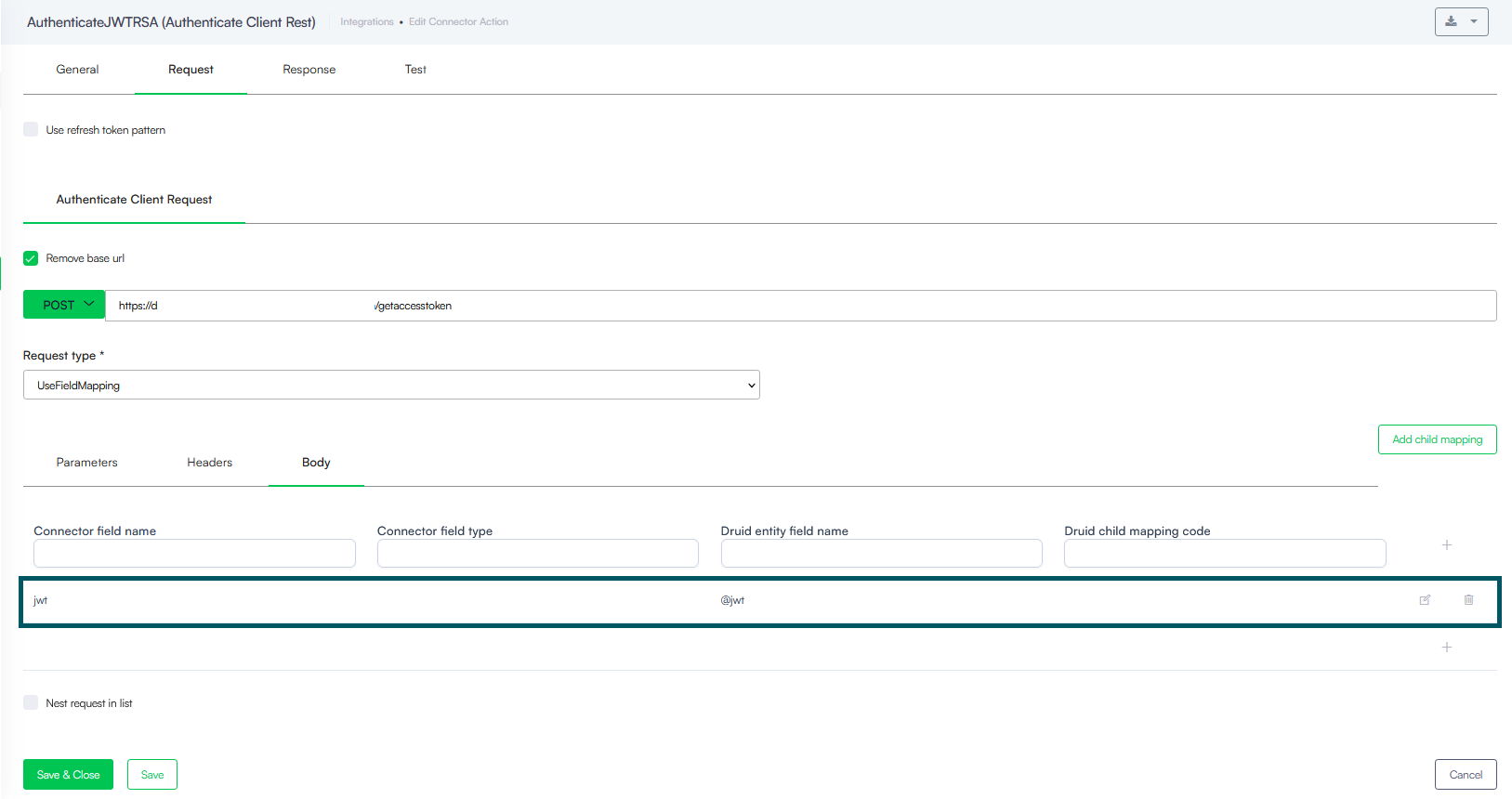
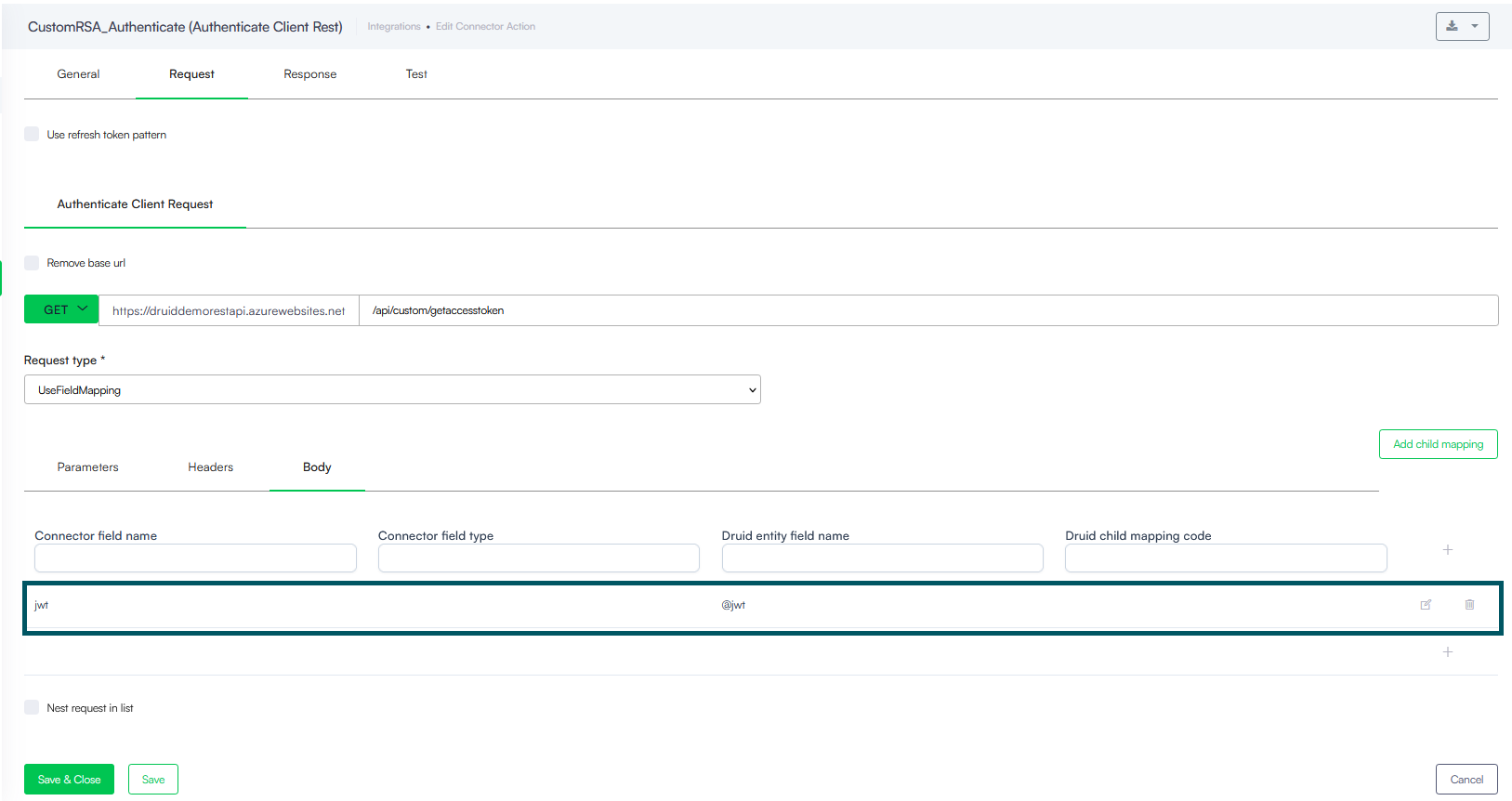
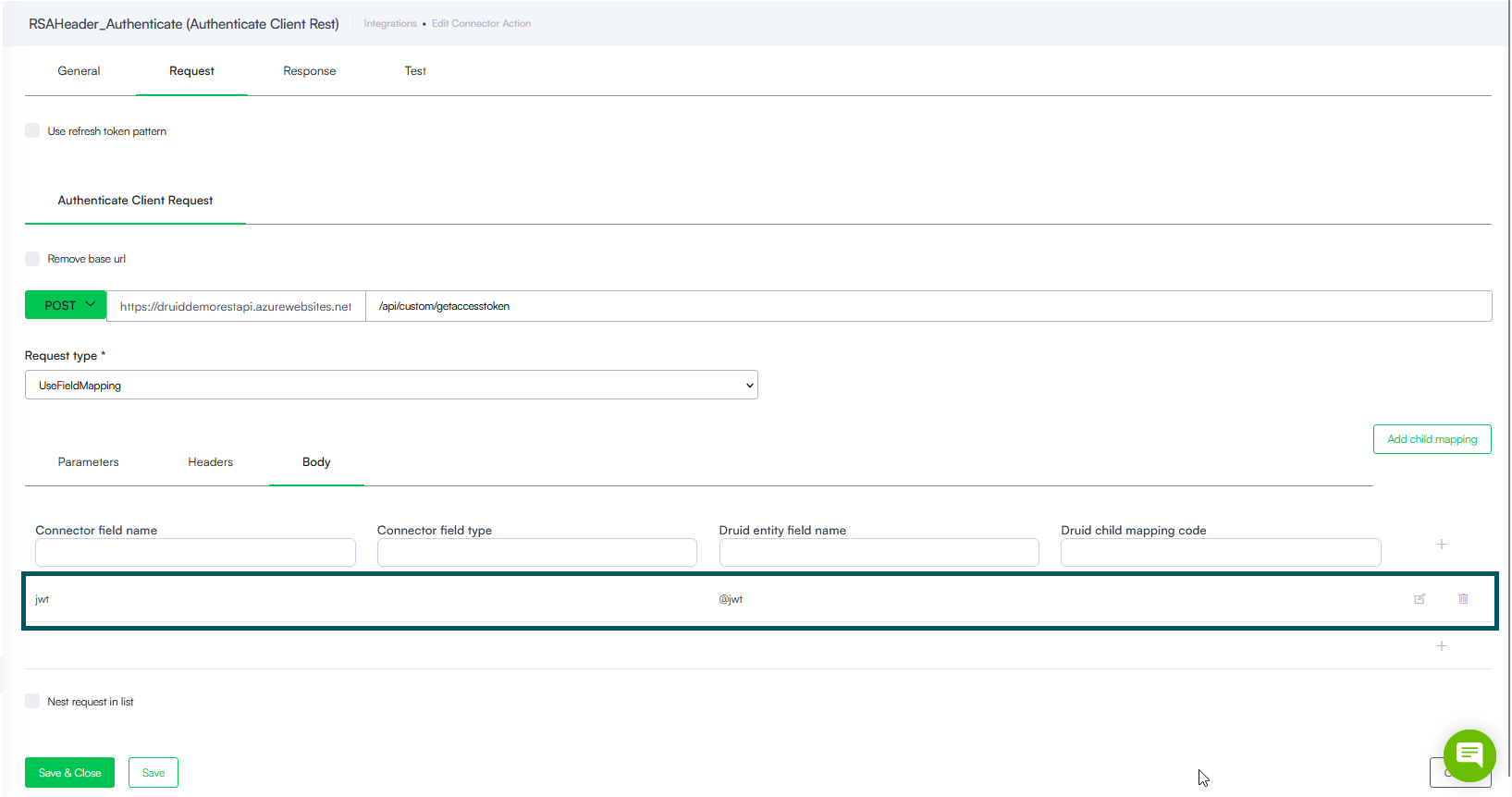
Click the Request tab, click the Body sub-tab, and map your target connector field to the context variable containing your generated assertion (e.g., @jwt).
This configuration passes the local cryptographic token forward to the identity provider endpoint to obtain your final access token.
JWT Assertion Generation Reference
When writing your script in the Custom Code integration task, choose one of the following four generation options based on your security infrastructure requirements.
The examples in this topic use the private key shown below.
Private Key Example
-----BEGIN PRIVATE KEY-----
MIIEvQIBADANBgkqhkiG9w0BAQEFAASCBKcwggSjAgEAAoIBAQCplnzTI7YyW4pi
e/NUw0RDS2X8Hwt9w3yQll15qAxQdrsjwIgSawuIZKd1ZFhTAYubY3jBXcJDN/nw
76oZGlLaRZrh9m5f/ZY/E6n7bE+OIQugWmQrSJdC//fCZS9seH2fzZyDM+Lhc8f/
41+YN8Qtp9EnAqgTLgA+NXRSt4COFMLX3vaZwlk9LSXr0iSvG0tpYJzNd4jLDtpN
eWALNBjumd4FrVnut6W7j7IYS5WJ1kuB+/vwW0hxwtEoWhU4Cd99z4gxyYO3cTOz
Ig7R9cNZb/MC6M26ArsOJq8dpRltReG3H+FWuovbz3t6yCIC2xh2yK3Lsuv9Ri9K
oUKEeXlHAgMBAAECggEACgpjDTyAit5jmkLHcd3LxVuJ8rxDJGjguk4aGQarj/oE
83AbPlKV0LdQ44Do6nqIHE+ZNIL2FPUT+GwK0J3/3h91NOqvt0GJgJDhUAWmIilF
CciVmgBxauHtISvM0SnDGk/Z8+SsX/fIasHjWjJMYahIGFIDxyWX6xb5ckpIs2C2
PbwFH8DobgkLipuW/wzXFb0Ml3qy9GyzM+guiiw4/0I2pEiAdMc8Xpo5OBD0ps9v
gLP7BDfUKYpcjPHTzzD1+0j/ZrPUI4sKF+UfC0dCzDKS41z01hdvzcbtZS8GldGV
j+6J3xfoppogrtrYssSfCbc5yMm8aFKPfjRmo101TQKBgQDd6ihhCeR2AdIoS2eg
1D4tdOGiS7RVKhk2N1s75QY9fIRLl5J74LY7amiR5yMflXNCPvGivr3Jfh1nQ5yE
vRAayb9Bzi23xmhwCABD/TyAhcI/oTjjY/NLCbWPnA7zrQ9/W1z5fdaZkPRX6+C/
LHDp1N89NG0SpaPY3Pe1BjrfFQKBgQDDos02Z98x70OedNR0nbmq7kY9Kc69rTAe
6qs2rRhIXPgINZ6bVX1MaxYjOATikUX5j7H9x/xpO2qDOCSUvBDQ1nuS0hqodGG8
VqKHDsNOc9WF3KfdNCQu35b4o4DwtHfq82msorSGtLgQhm9Wl2LWrKuvjboWNnun
j+DOtFgt6wKBgQCiiTvz/yvfJuxHaRtIl8vGvYH5vhsh+YinxhnDn7ZXWJkJSMYY
h3jRwdk/bBy0qGDYF4QiIDSfnQhqNwIv0s414Kh9yUaBAQhDbgjLw3IJ7G5e7nXd
TrrGriDWQ4ZMAeiE7mUFs553sczVjMV7IFC/Y5PynzB4ZOvCDe48H4kFFQKBgAvt
tU2H79f/msPio8GojFWbybSZA/4UvUZlUKM40q423PjDLDSUddte/C6Rj9qwuO+K
j3PF6eIQuWHe3nwjK3NQYKCHJxD2Z68wKSDLCaWS8oYC+klGkJ47C92FOqtylY1B
4kOgeBluk3qOd+Nzv5cPWDiQD7SjBc8lurNf07CZAoGAa022FPS+/SSYEWBF2StM
G6uzkqGdJnfLekftfBrkCjQiM3tvgJIZmSR6CjcVa+o7WXyr3ufQEc+BkFCIsBSc
yXBqP4510w0XDtwojBQRe00/2fmeRRLjbLuNPN5luIwn1USWdzTrXh9lUbr+9Ogc
icXlBUdQ6ya17speo6H3G3E=
-----END PRIVATE KEY-----
Generic JWT
Uses symmetric encryption with a shared private key.
Code Example
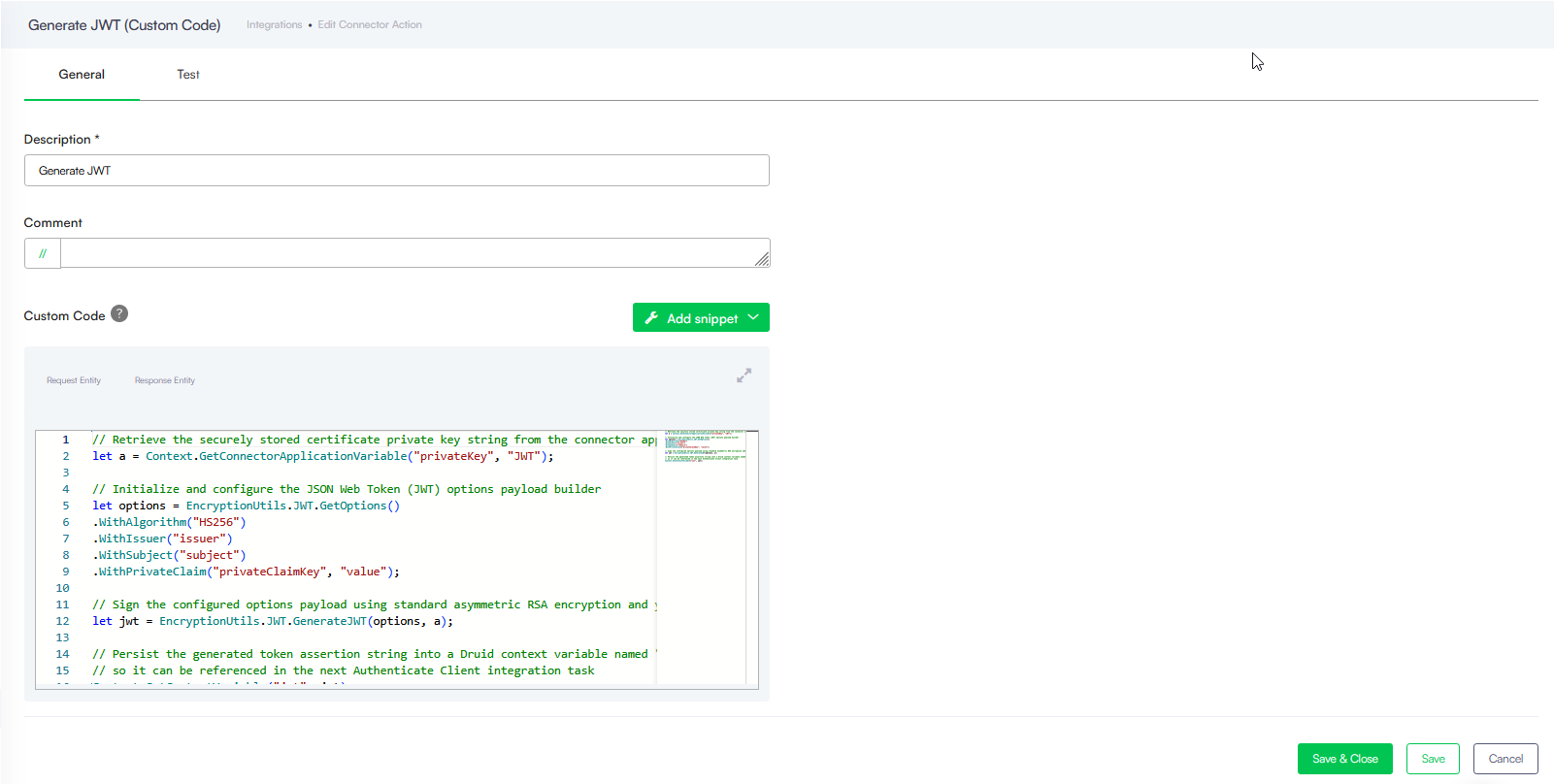
// Retrieve the securely stored certificate private key string from the connector application variable table
let a = Context.GetConnectorApplicationVariable("privateKey", "JWT");

// Initialize and configure the JSON Web Token (JWT) options payload builder
let options = EncryptionUtils.JWT.GetOptions()
.WithAlgorithm("HS256")
.WithIssuer("issuer")
.WithSubject("subject")
.WithPrivateClaim("privateClaimKey", "value");

// Sign the configured options payload using standard asymmetric RSA encryption and your private key
let jwt = EncryptionUtils.JWT.GenerateJWT(options, a);

// Persist the generated token assertion string into a Druid context variable named "jwt"
// so it can be referenced in the next Authenticate Client integration task
Context.SetContextVariable("jwt", jwt);
Custom Code Task Example
Authenticate Client Task Example
Rest API Call - Custom Code Response variable
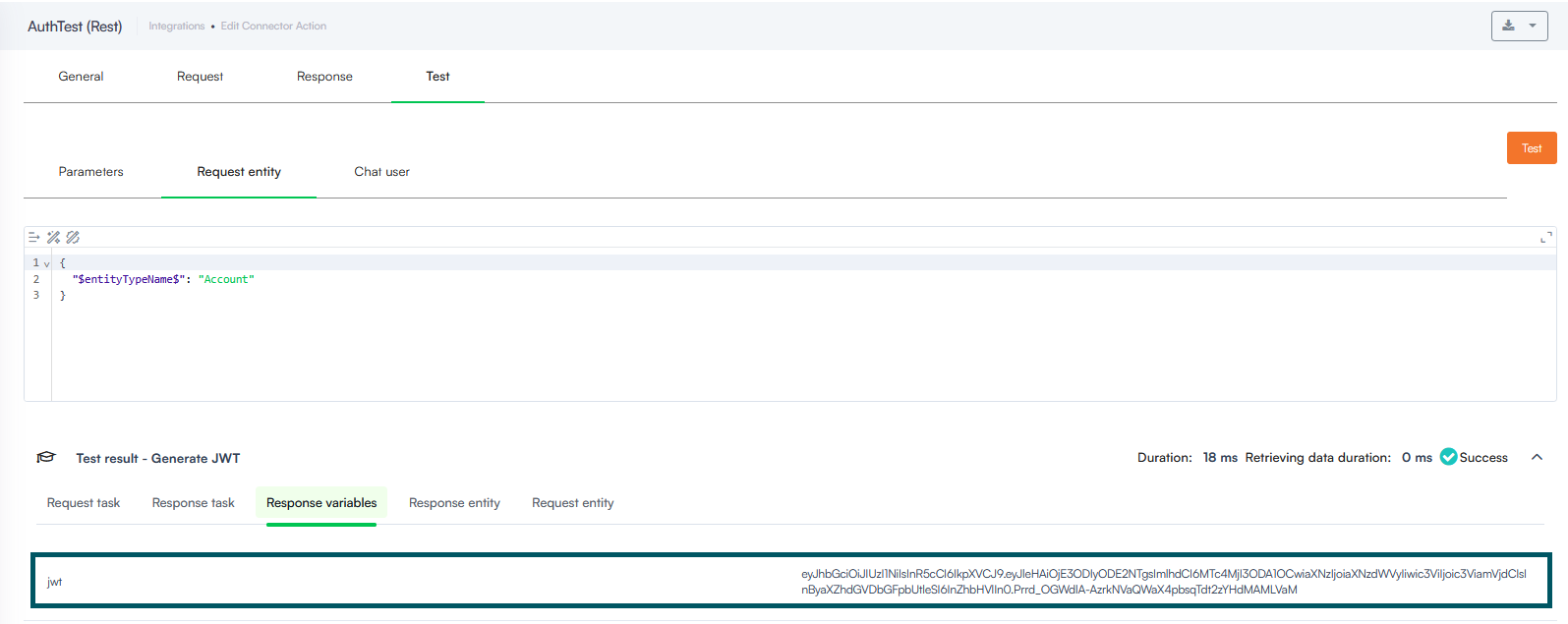
RSA JWT
Uses standard asymmetric RSA encryption powered by your certificate private key string.
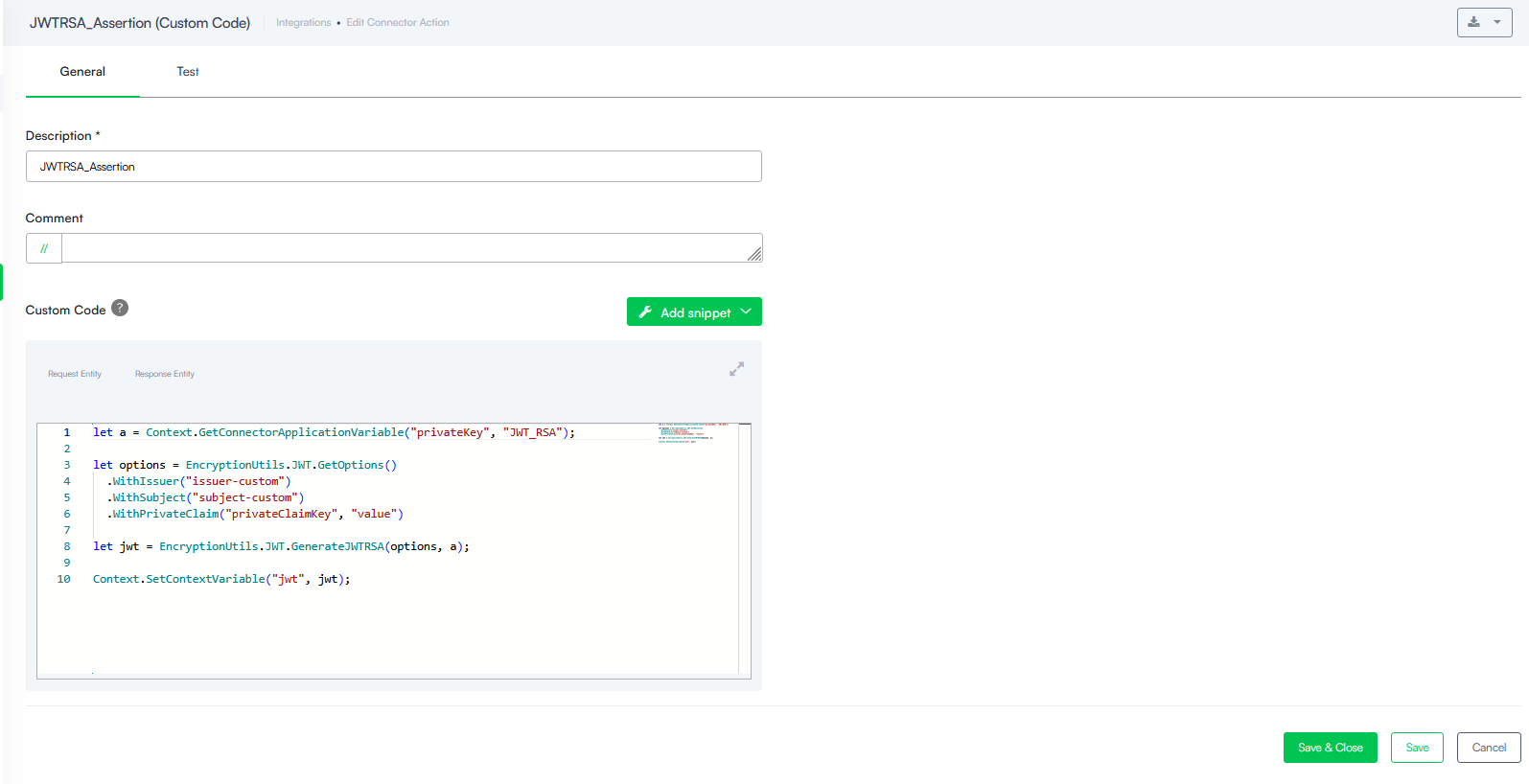
Custom Code Example
// Retrieve the securely stored certificate private key string from the connector application variable table
let a = Context.GetConnectorApplicationVariable("privateKey", "JWT_RSA");

// Initialize and configure the JSON Web Token (JWT) options payload builder
let options = EncryptionUtils.JWT.GetOptions()
  .WithIssuer("issuer-custom")                    // Set the explicit token issuer claim
  .WithSubject("subject-custom")                  // Set the target token subject claim
  .WithPrivateClaim("privateClaimKey", "value");  // Append a custom key-value pair as a private claim

// Sign the configured options payload using standard asymmetric RSA encryption and your private key
let jwt = EncryptionUtils.JWT.GenerateJWTRSA(options, a);

// Persist the generated token assertion string into a Druid context variable ("jwt")
// so it can be referenced in the next Authenticate Client integration task
Context.SetContextVariable("jwt", jwt);
Custom Code Task Example
Authenticate Client Task Example
Rest API Call - Custom Code Response variable
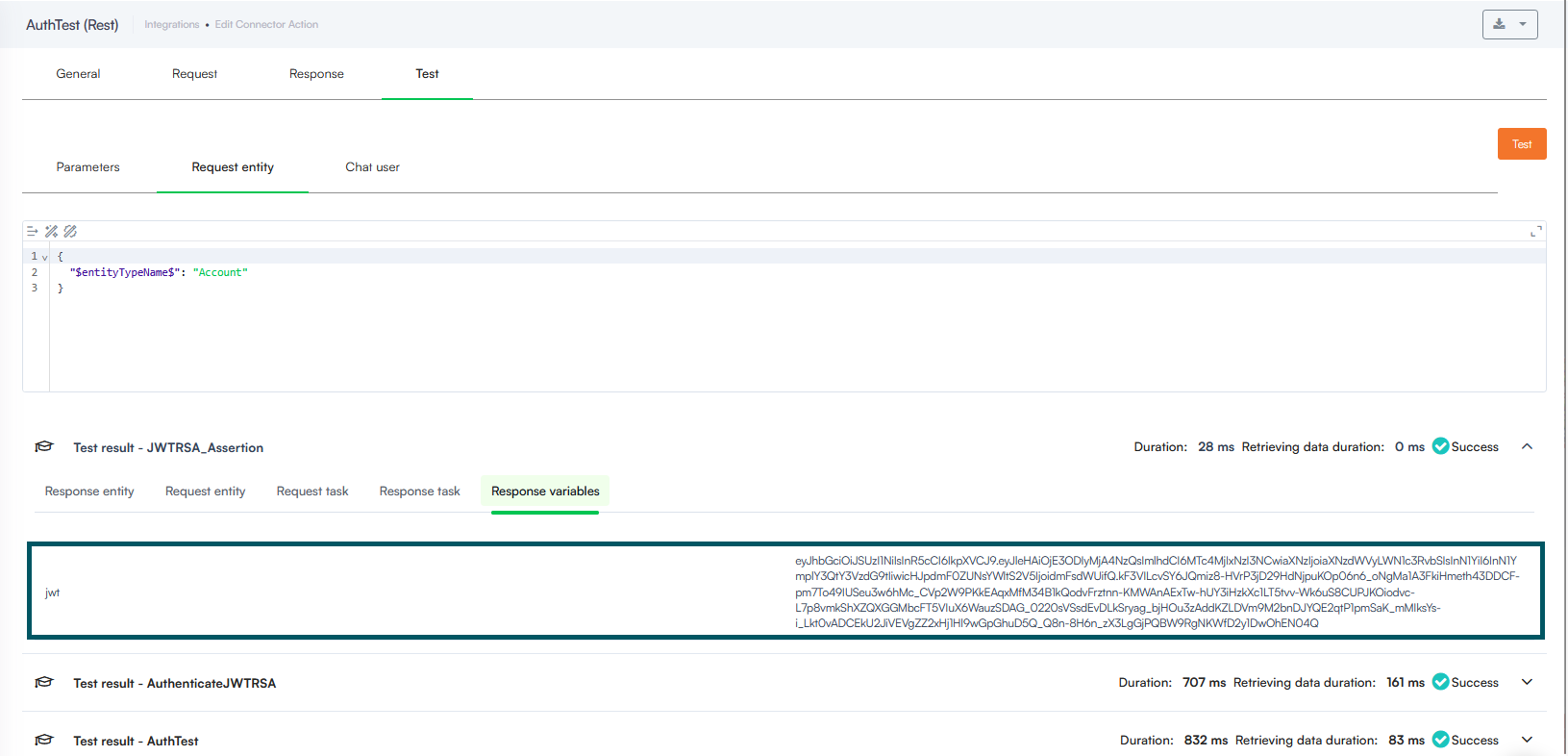
Verification of the signing algorithm with jwt.io
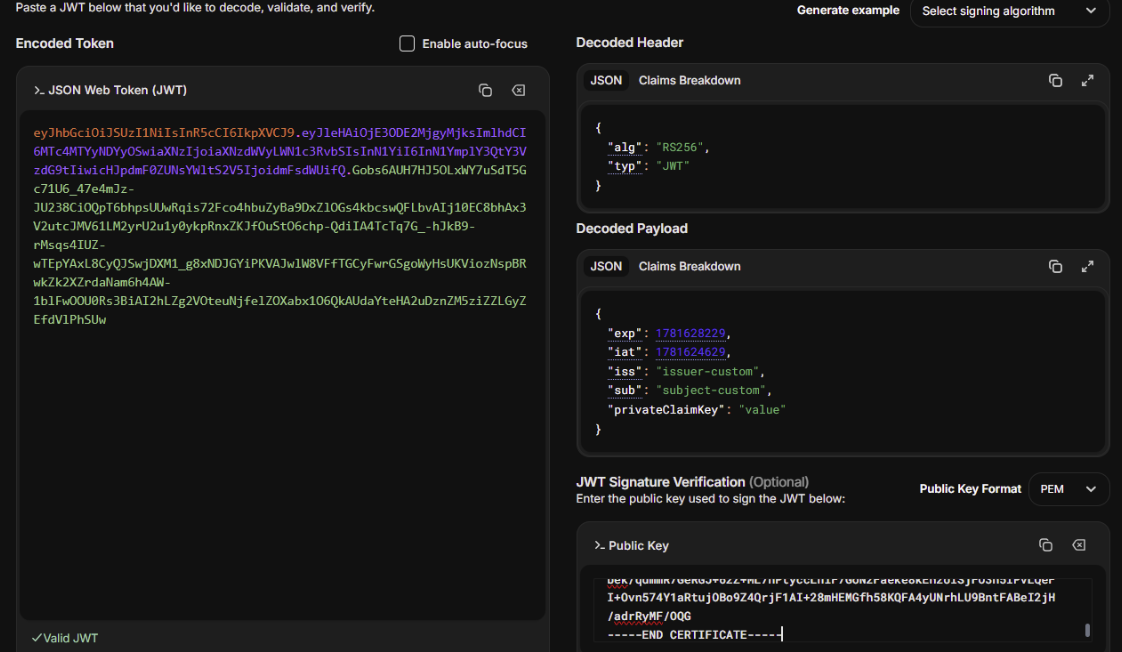
Custom RSA JWT
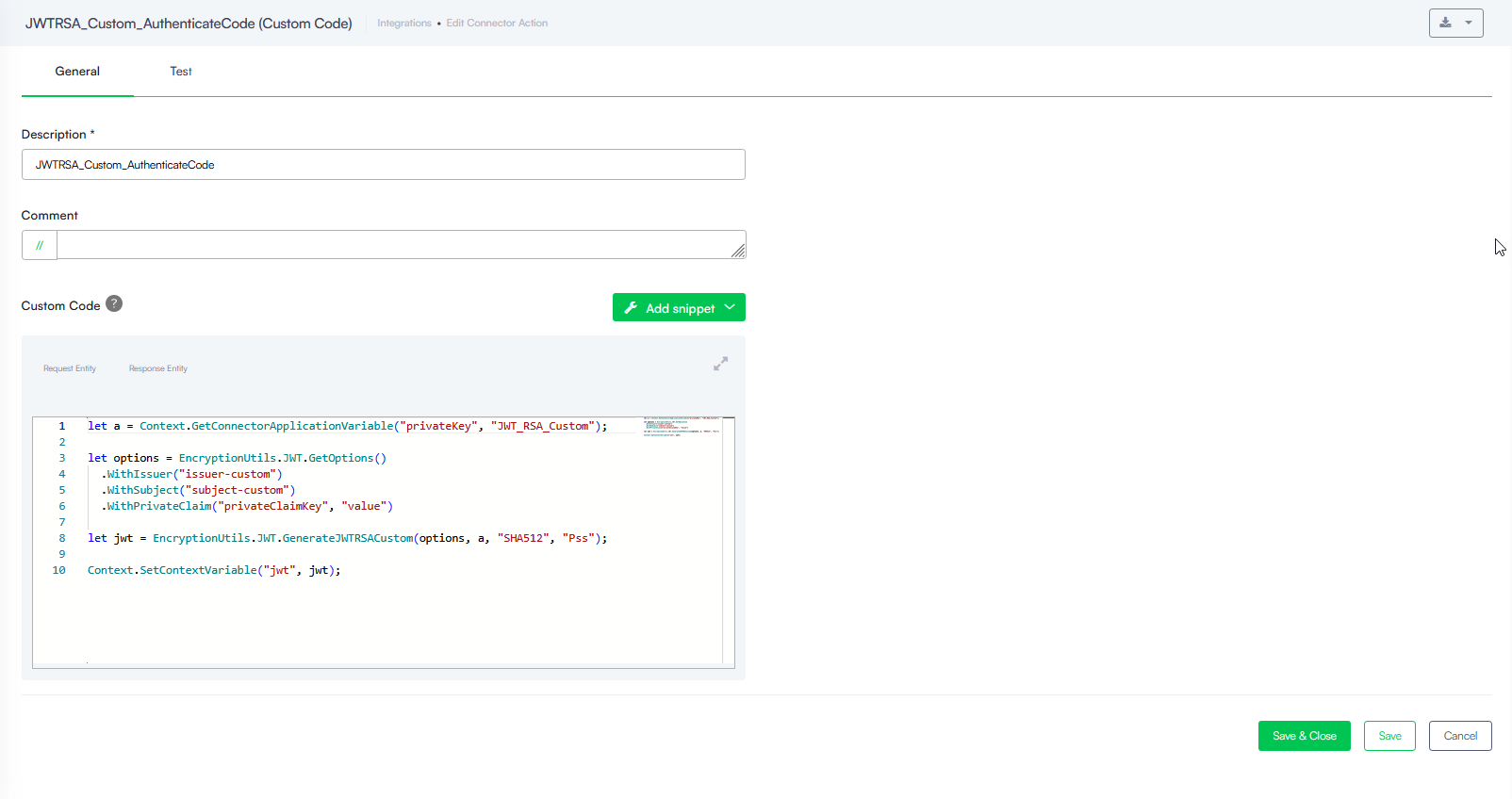
Provides explicit control over your asymmetric signing algorithm and padding style configurations.
// Retrieve the securely stored certificate private key string from your connector application variable table
let a = Context.GetConnectorApplicationVariable("privateKey", "JWT_RSA_Custom");

// Initialize and configure the JSON Web Token (JWT) options payload builder
let options = EncryptionUtils.JWT.GetOptions()
  .WithIssuer("issuer-custom")                    // Set the explicit token issuer claim
  .WithSubject("subject-custom")                  // Set the target token subject claim
  .WithPrivateClaim("privateClaimKey", "value");  // Append a custom key-value pair as a private claim

// Sign the options payload using asymmetric RSA encryption with explicit overrides
// for the hashing algorithm (SHA512) and the cryptographic padding style (Pss)
let jwt = EncryptionUtils.JWT.GenerateJWTRSACustom(options, a, "SHA512", "Pss");

// Persist the generated custom RSA token assertion string into a Druid context variable ("jwt")
// so it can be mapped into the request body of the subsequent Authenticate Client integration task
Context.SetContextVariable("jwt", jwt);
Custom Code Task Example
Authenticate Client Task Example
Rest API Call - Custom Code Response variable
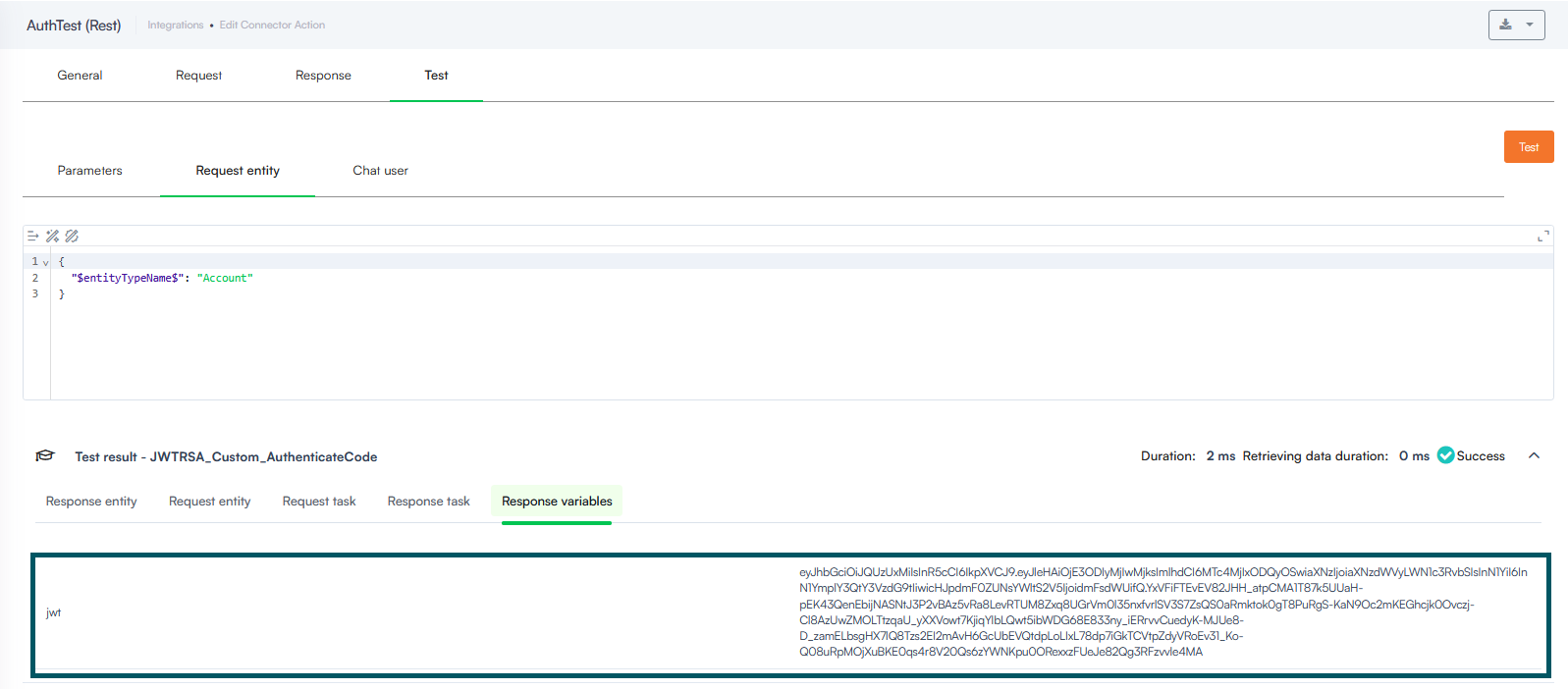
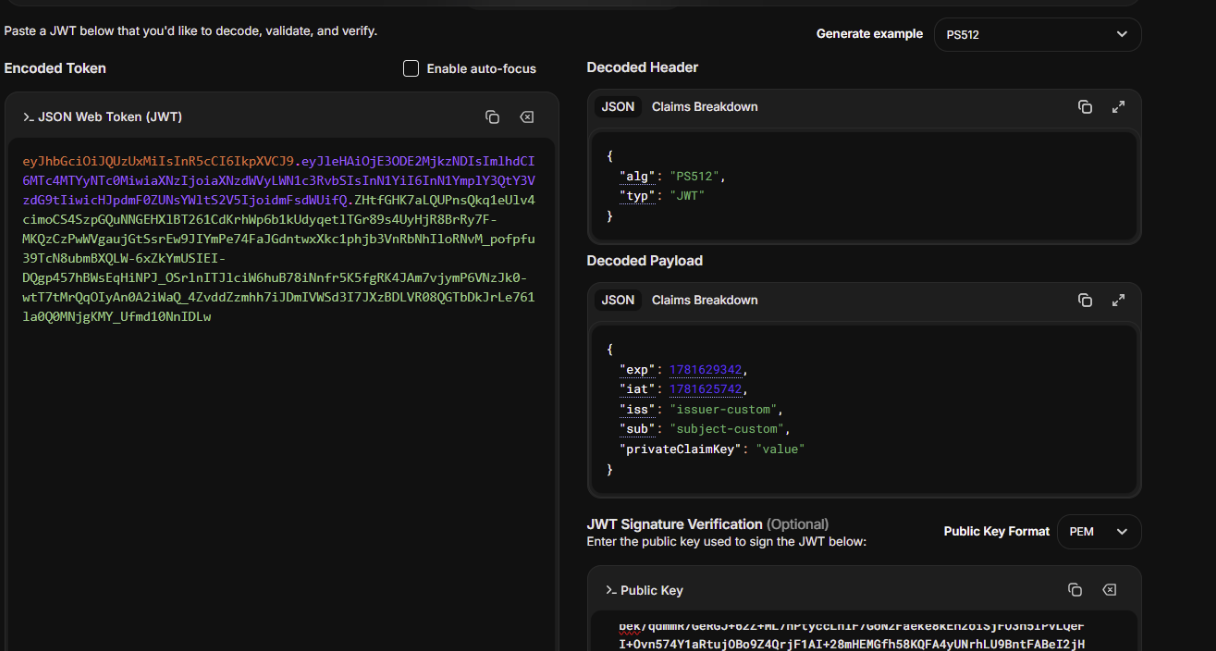
Verification of the signing algorithm with jwt.io
RSA JWT with Header
Injects cryptographic identity parameters directly into the JWT metadata header area for strict token verification environments.
// Retrieve the securely stored certificate private key string from your connector application variable table
let a = Context.GetConnectorApplicationVariable("privateKey", "JWT_RSA_with_Header");

// Initialize and configure the JSON Web Token (JWT) options payload builder
let options = EncryptionUtils.JWT.GetOptions()
  .WithIssuer("issuer-custom")                    // Set the explicit token issuer claim
  .WithSubject("subject-custom")                  // Set the target token subject claim
  .WithPrivateClaim("privateClaimKey", "value");  // Append a custom key-value pair as a private claim

// Sign the options payload and inject mandatory metadata directly into the token header area.
// Parameters passed:
// - options: The configured payload claims builder
// - a: The certificate private key used for signing
// - "test-key-1": The Key ID ("kid") parameter to specify which public key verifies this signature
// - "HCO1x4FLUwRqpAcA8UnR_E_0ZrE": The X.509 SHA-1 Thumbprint ("x5t") base64url string of the certificate
// - "SHA384": Explicit hashing algorithm override
// - "Pss": Explicit cryptographic padding style override
let jwt = EncryptionUtils.JWT.GenerateJWTRSAWithHeader(options, a, "test-key-1", "HCO1x4FLUwRqpAcA8UnR_E_0ZrE", "SHA384", "Pss");

// Persist the generated header-enriched RSA token assertion string into a Druid context variable ("jwt")
// so it can be mapped into the request body of the subsequent Authenticate Client integration task using {jwt}
Context.SetContextVariable("jwt", jwt);
Metadata Header Parameters:
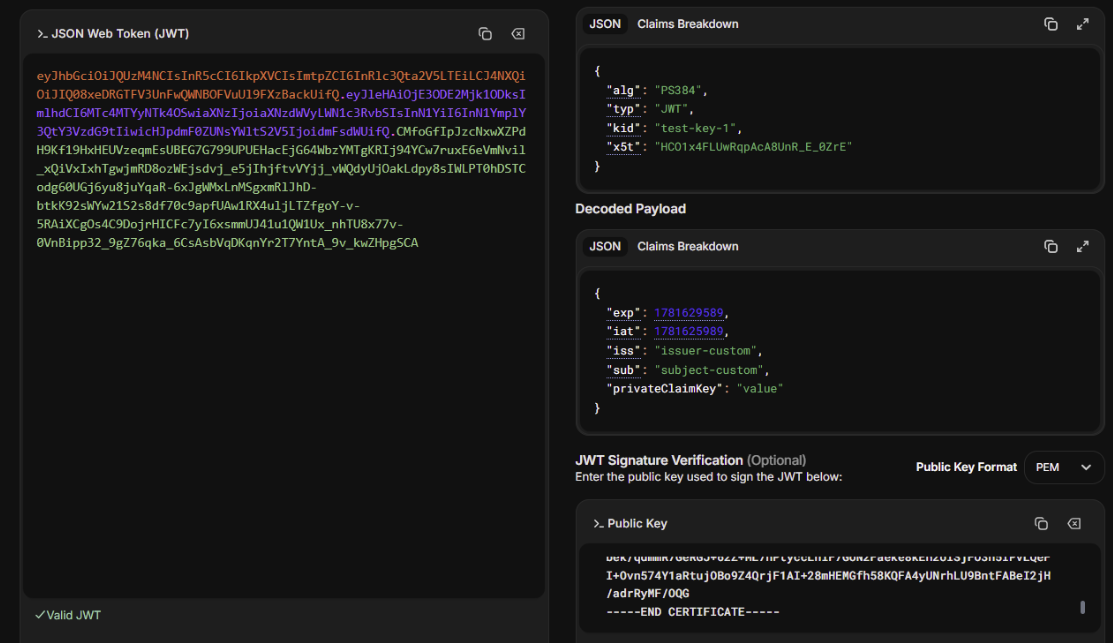
- kid (Key ID): An arbitrary string identifier you select. It tells the token recipient which public key to use for signature verification. While any test string works during staging, production environments should use a unique UUID, certificate thumbprint, or key name from a secure vault.
- x5t (X.509 SHA-1 Thumbprint): The base64url-encoded SHA-1 fingerprint of the public certificate linked to your private key.
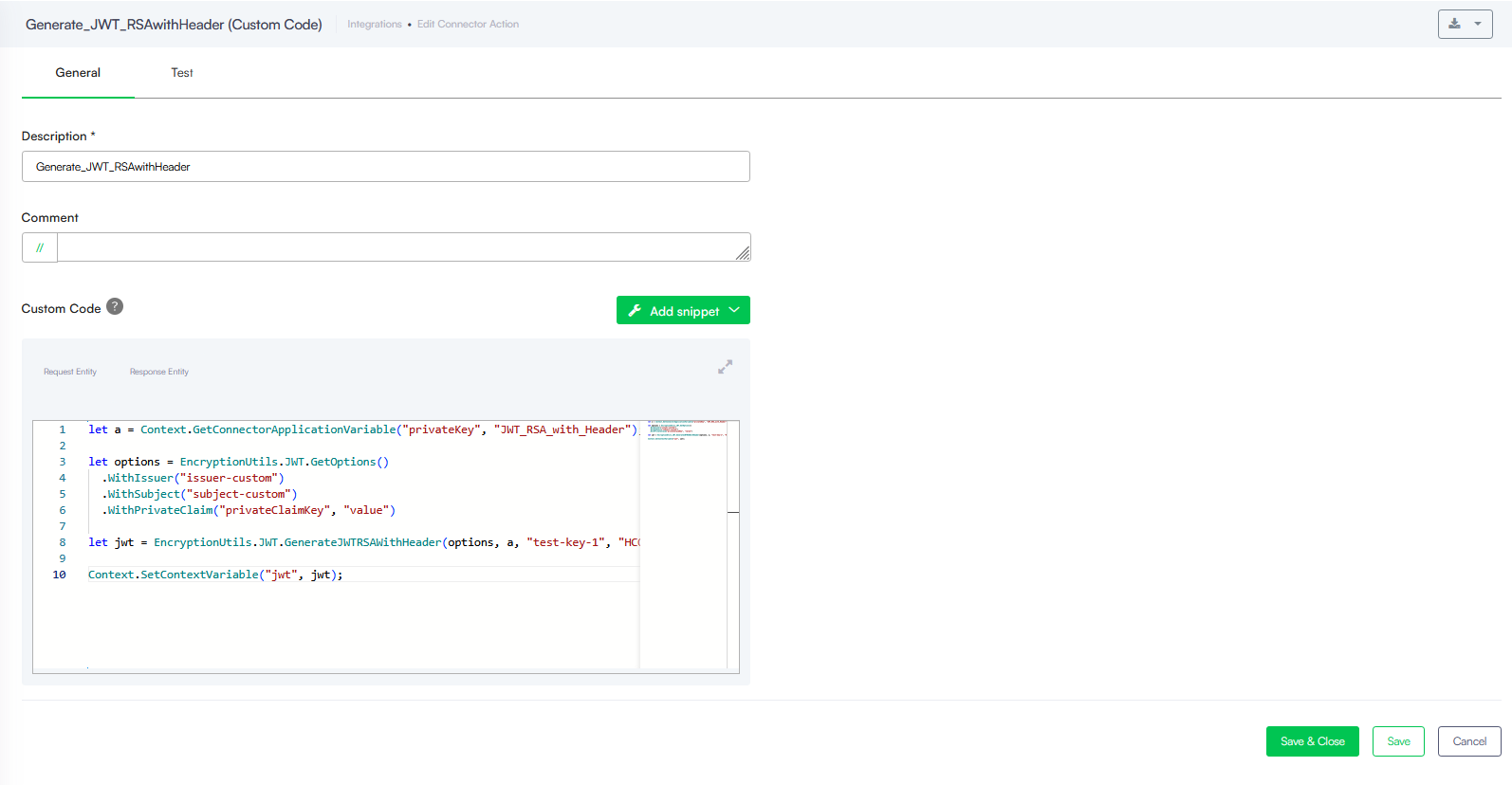
Custom Code Task Example
Authenticate Client Task Example
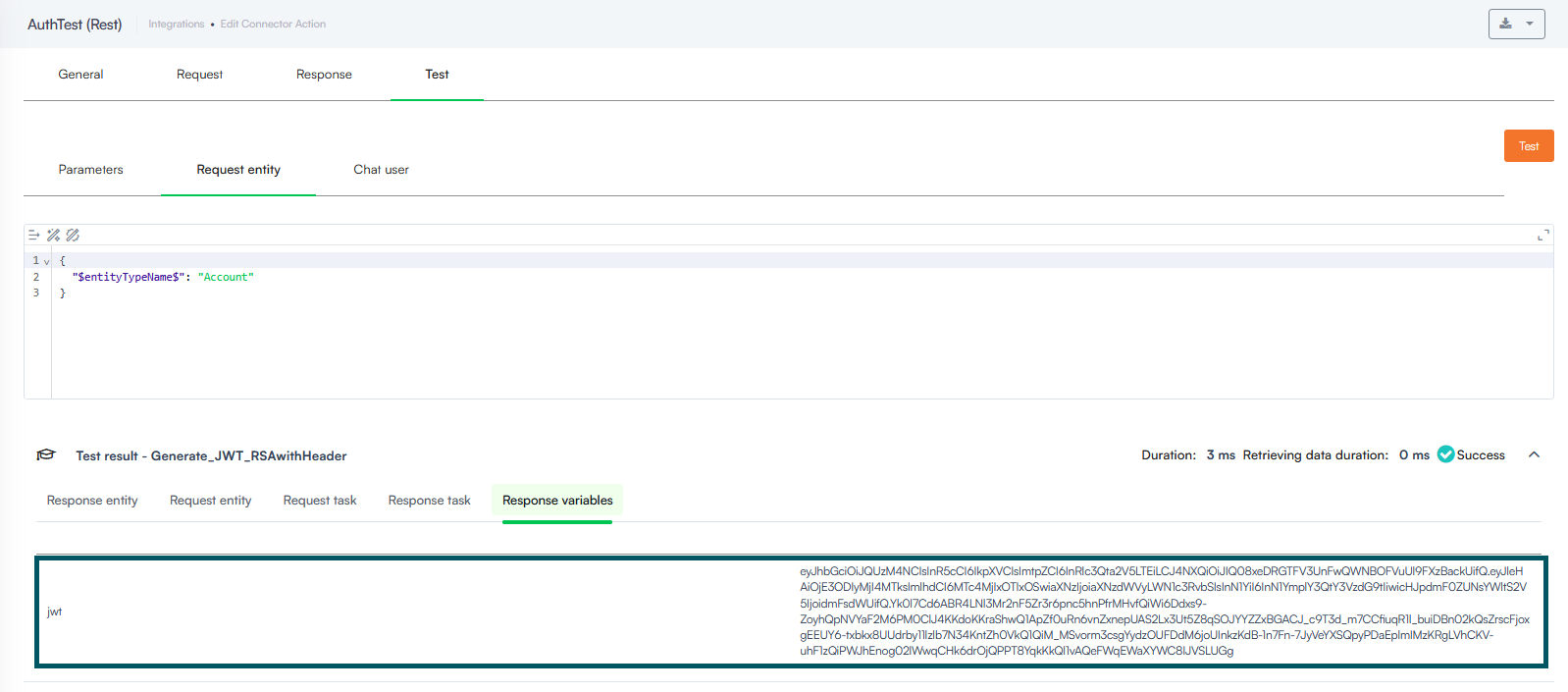
Rest API Call - Custom Code Response variable
Verification of the signing algorithm with jwt.io